Mobile Data Connected but Apps Not Working – Here’s What Fixed It for Me
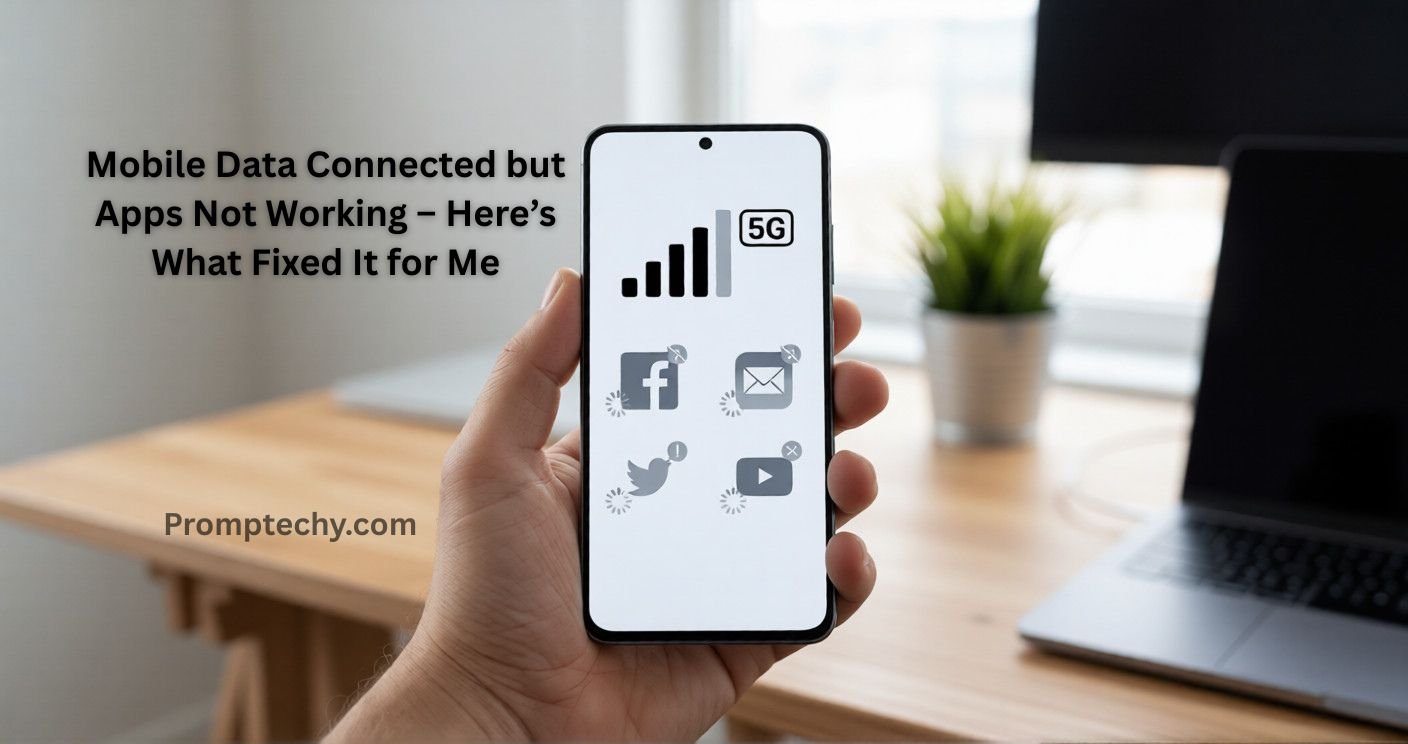
My phone’s mobile data connected, but apps not working — this was exactly the problem that stressed me out the first time it happened. My phone showed a full mobile data signal, the internet icon was there, and everything looked normal. But when I opened Instagram, nothing loaded. WhatsApp messages stayed stuck on “sending,” and YouTube refused to play videos.
At first, I thought it was a temporary network issue. I waited a few minutes. Nothing changed. That’s when frustration kicked in, because WiFi worked perfectly, but mobile data didn’t — and I needed mobile data at that moment.
So I stopped guessing and decided to find out what was really going on.
Mobile Data Connected but Apps Not Working: Everything Looked Fine
What made this issue confusing was that mobile data was clearly connected. The signal bars were strong, and sometimes even Google search worked. But apps simply refused to respond.
There was no clear error message. Nothing said, “Your data is blocked.” It just silently failed.
From my experience, this problem usually isn’t caused by the SIM card or network provider alone. Most of the time, the issue is hidden inside phone settings.

Why is Mobile Data Connected but Apps Not Working on Android
After checking settings, testing different fixes, and making a few mistakes, I found some common reasons behind this issue. Why is Mobile Data Connected but Apps Not Working?
Background Data Is Restricted
Some apps are not allowed to use mobile data in the background. When this setting is turned off, apps may open, but won’t load content properly.
Data Saver Mode Is Blocking Apps
Data Saver sounds useful, but it limits how apps access the internet. Many apps stop working correctly when it’s enabled.
Incorrect or Corrupted APN Settings
APN settings control how your phone connects to the mobile network. If these settings are outdated or incorrect, apps struggle to connect.
App-Specific Network Issues
Sometimes the problem isn’t mobile data itself. A specific app may need permission or an update.
Temporary Network Glitches
Small network bugs happen more often than we realize, especially after updates or SIM changes.
What I Did to Make Apps Work on Mobile Data
I didn’t fix this in one step. I went through things one by one, and each step made the situation clearer.
1. I checked the background data permissions
This was the first real fix.
I opened settings, selected the app that wasn’t working, and checked whether background data was allowed. In my case, some apps were restricted without me realizing it.
As soon as I allowed background data, a few apps started working instantly.
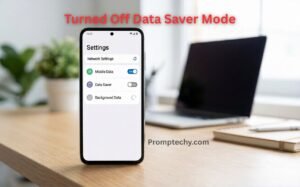
2. I Turned Off Data Saver Mode
I had enabled Data Saver earlier to save on the internet, and honestly, I forgot about it.
After turning it off, apps became more responsive. Messages started sending normally, and feeds refreshed again.
Data Saver can be useful sometimes, but it can quietly block apps in the background.
3. I Reset APN Settings
I was hesitant to try this at first, but it helped.
Resetting APN settings restores the default network configuration provided by your carrier. I didn’t lose any personal data, and the mobile internet connection became more stable afterward.
If your mobile data connects but apps don’t load, this step is worth trying.
4. I Restarted Network Connections Properly
Instead of quickly toggling airplane mode, I followed this method:
- Turned on airplane mode
- Waited 30 seconds
- Turned it off
- Restarted the phone
This cleared minor network glitches affecting app connectivity.
5. I Updated the Apps That Were Not Working
Some apps were outdated. After updating them using WiFi, they started working properly on mobile data as well.
Outdated apps often fail to connect correctly, especially after system updates.
6. I Reset Network Settings (Last Option)
This was my final step.
Resetting network settings removes saved WiFi networks and Bluetooth connections, but it fixes deeper network issues. After doing this, every app worked normally on mobile data.
It honestly felt like a fresh start.
Things I Tried That Didn’t Help
Not everything worked, and honesty matters.
I tried a few “internet booster” apps. They looked fancy, but didn’t fix the problem. Some even ran ads in the background.
I also tried force-closing apps repeatedly. It didn’t help long-term.
From my experience, settings matter more than apps.
How I Avoid This Mobile Data Problem Now
After fixing it once, I didn’t want it to happen again. Here’s what I do now:
- I keep Data Saver off unless necessary
- I check background data permissions for important apps
- I install system and app updates on time
- I avoid unnecessary “optimizer” apps
- I reset network settings only when needed
Since following this routine, I haven’t faced the same issue again.
Final Thoughts
If your mobile data is connected but apps are not working, don’t panic. In most cases, the network is fine; it’s the phone settings that need attention.
From my experience, background data permissions and Data Saver mode caused the biggest issues. Resetting APN or network settings fixed the rest.
There’s no shortcut or magic app for this. Just simple checks, done calmly, can save a lot of frustration.
Frequently Asked Questions.
Why do apps not work on mobile data but work on WiFi?
Mobile data permissions, Data Saver mode, or APN settings may be blocking apps.
Does Data Saver block apps from using the internet?
Yes, it can restrict background data and affect app loading.
Is it safe to reset network settings?
Yes. It doesn’t delete personal files, only network-related settings.
Can SIM issues cause this problem?
Sometimes, but most cases are related to phone settings rather than the SIM.
Do booster apps actually help?
From my experience, no. Most of them don’t solve real network issues.
